Using UnaGPT as Students – Submit Answers and Receive AI Feedback
PrintThis guide is designed to help students in using UnaGPT to submit tasks, receive AI-generated grades and feedback, and file appeals on the Una platform.
Login using a Student Account
Please refer to the guide titled User Login and Change Display Language for login instructions.
Entering a UnaGPT Virtual Classroom
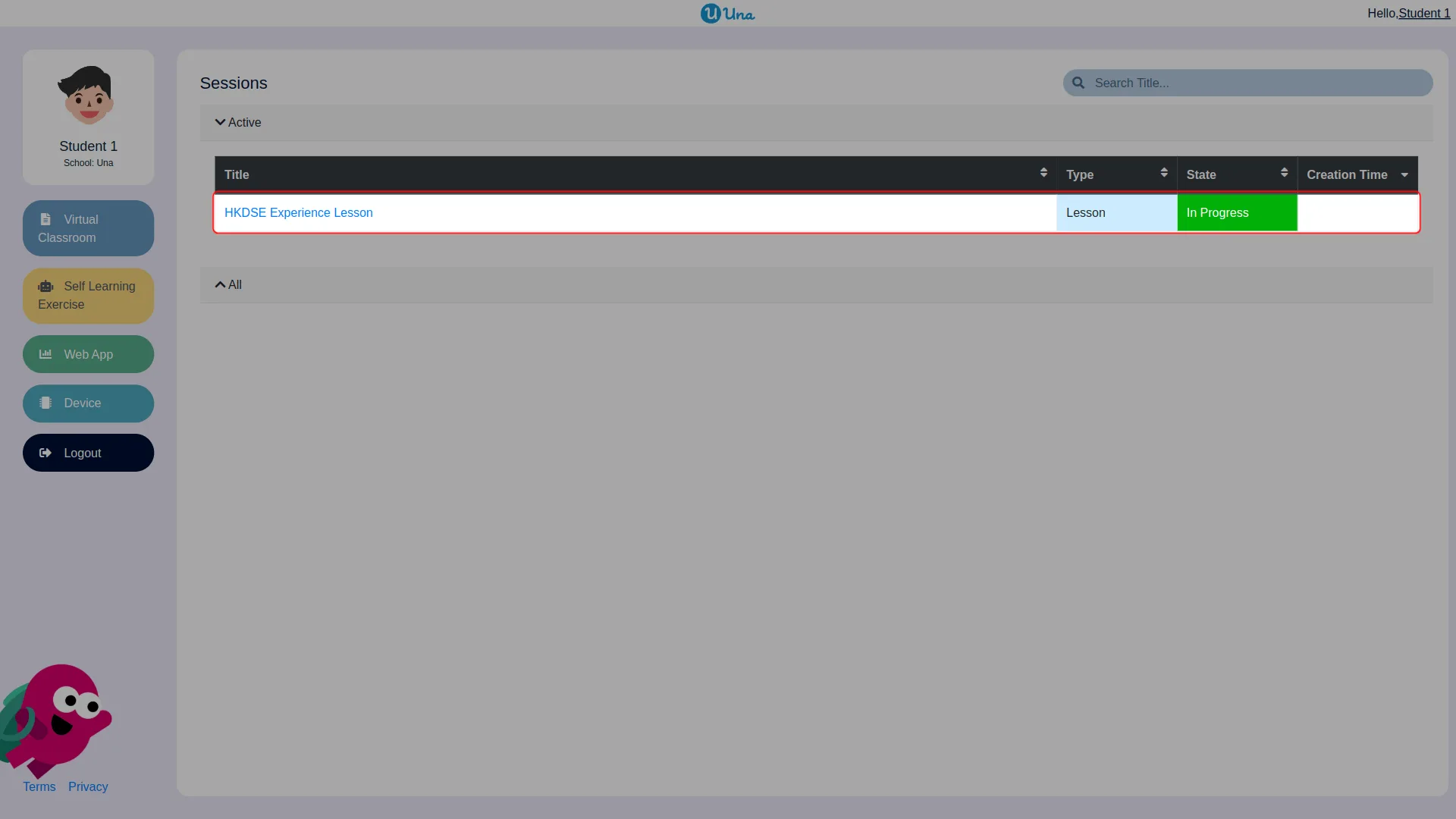
- Click on the Virtual Classroom session (e.g. "HKDSE Experience Lesson") to enter a virtual classroom.
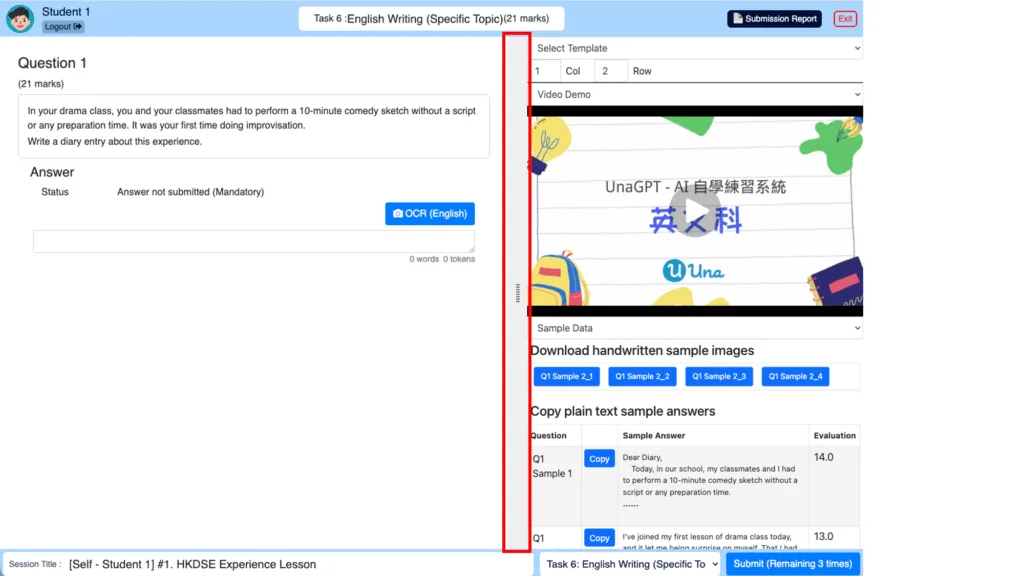
- A popup window with task instructions will appear.
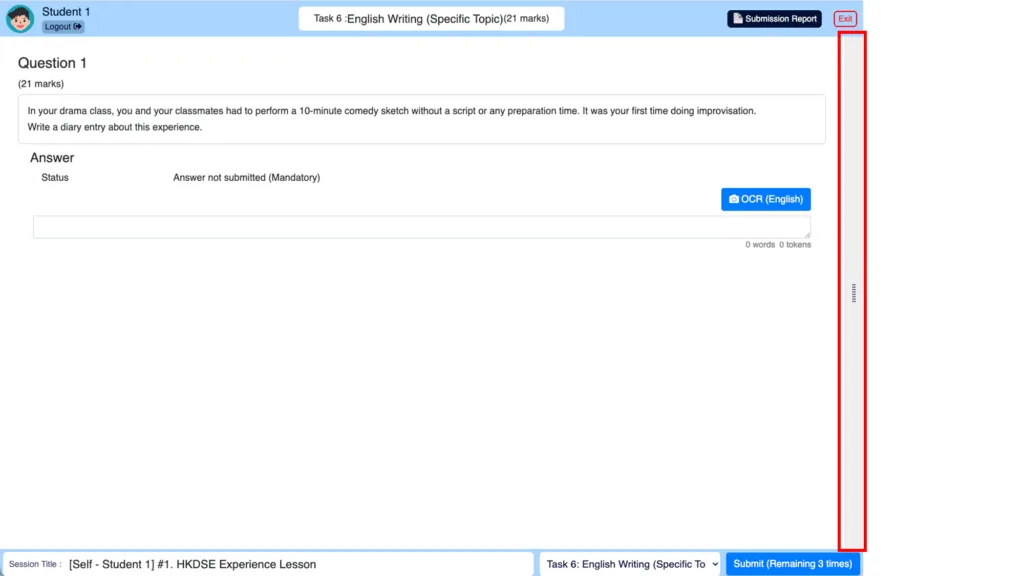
- Drag the vertical split bar in the middle to adjust the size of the popup window.
- If you drag it to the right to hide the popup window and want to view it again, drag the vertical split bar back to the left.
Answering your question
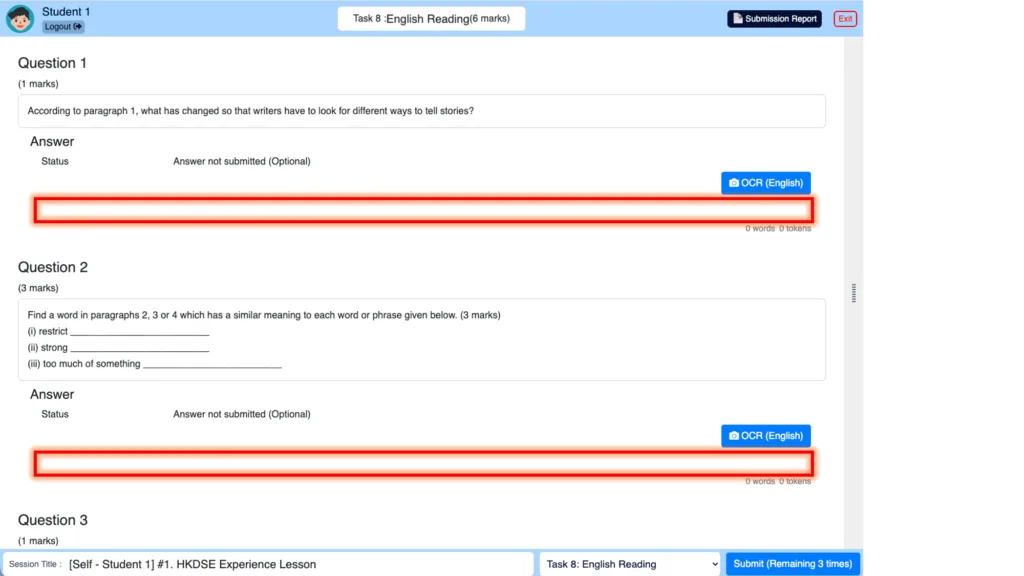
- Entering your answer into the textfield under the questions
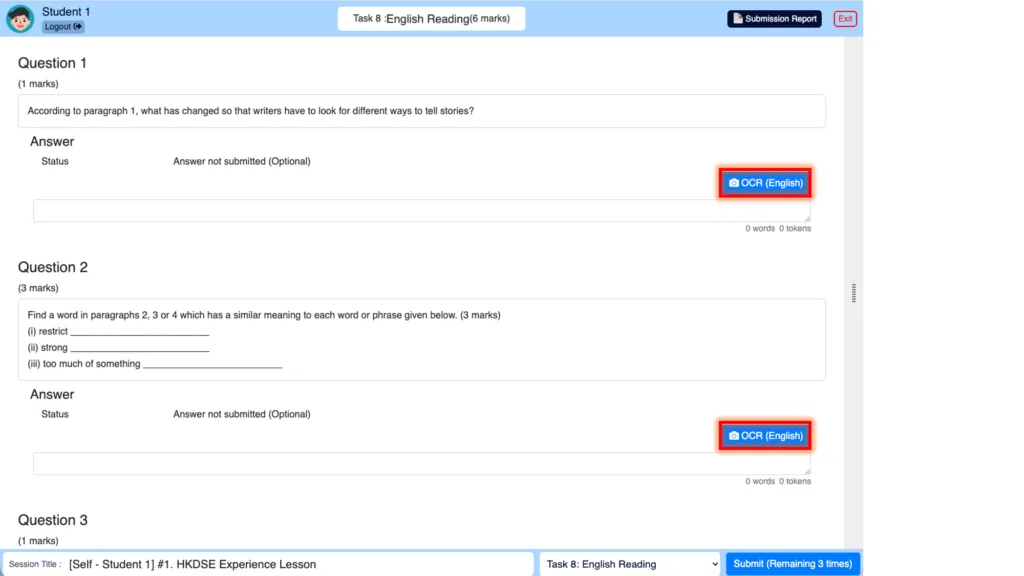
- You can also click OCR button to use the OCR function to input text/Math answer
Please refer to the detailed OCR guide titled:
Tasting UnaGPT OCR - Converting Handwritten Answers with Ease
Submitting your answer
After entering all of your answers (either by typing or using OCR):
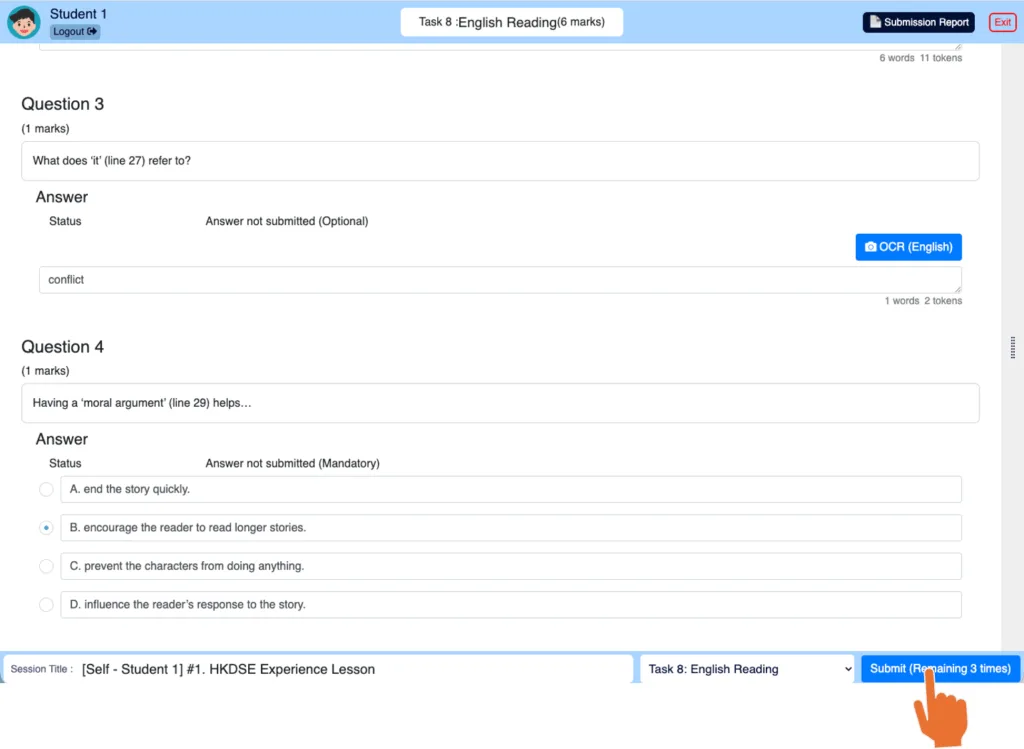
- Click “Submit”.
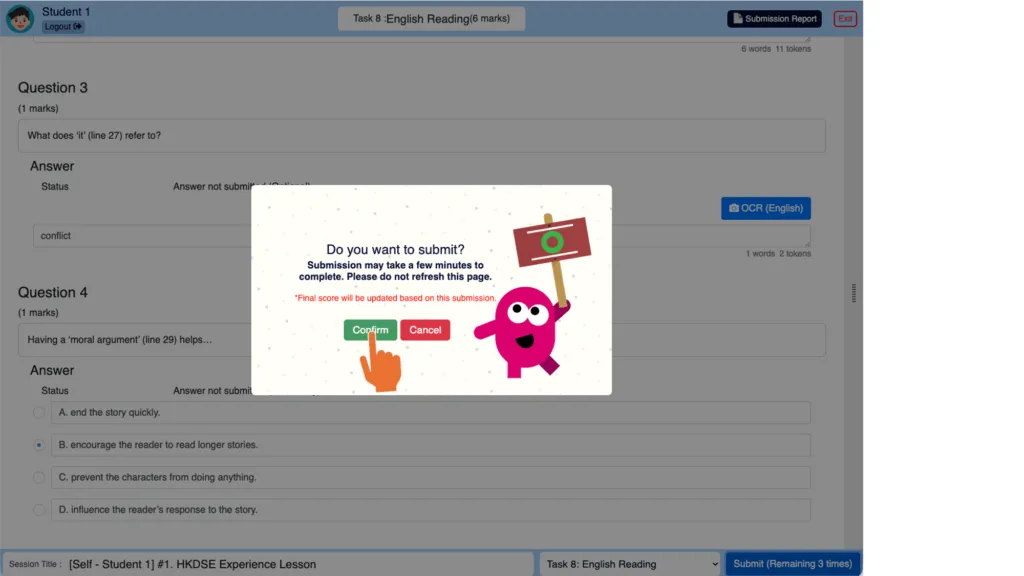
- Click “Confirm” to finalize your submission.
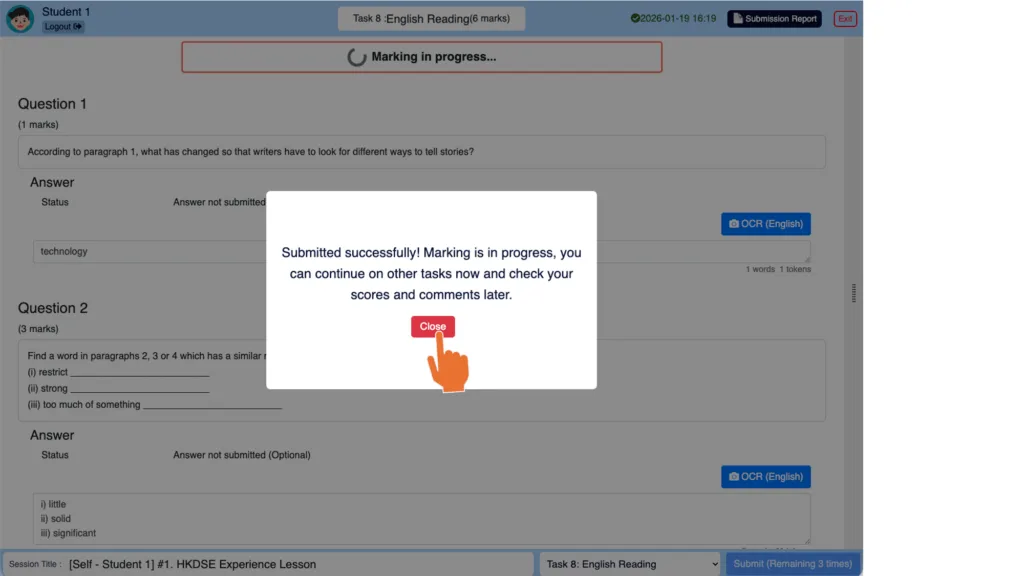
- If the submission succeeds, you can click "Close" to close the pop-up window and switch to another task while waiting for AI evaluation.
Check AI-Generated Grade and Feedback
There are TWO AI grading and feedback mode may be set by the teacher:
- Immediate Mode: Grading and feedback are released once the AI marking progress is completed.
- After Review Mode: Grading and feedback are released when the teacher reviewed and confirmed the AI marking result
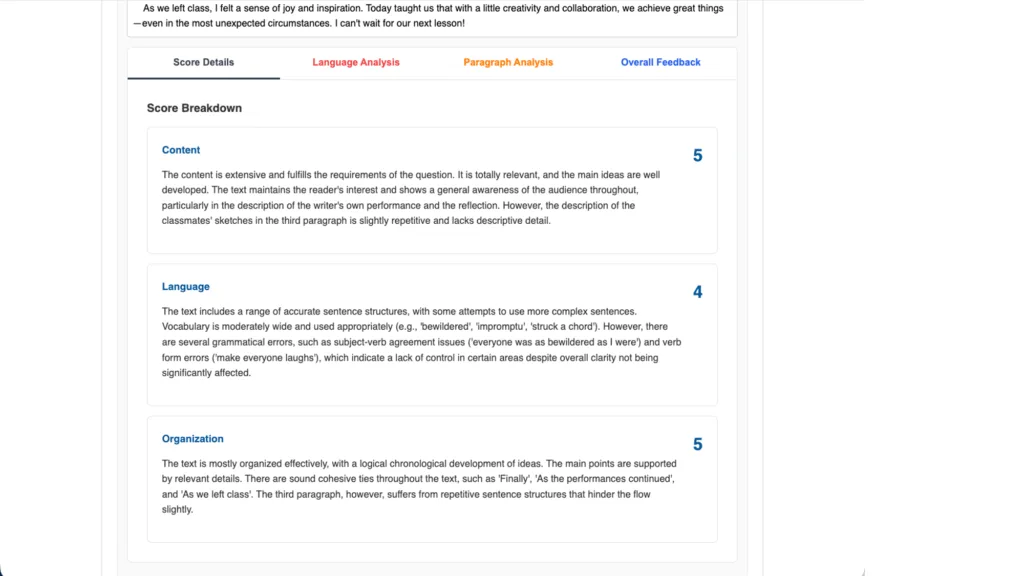
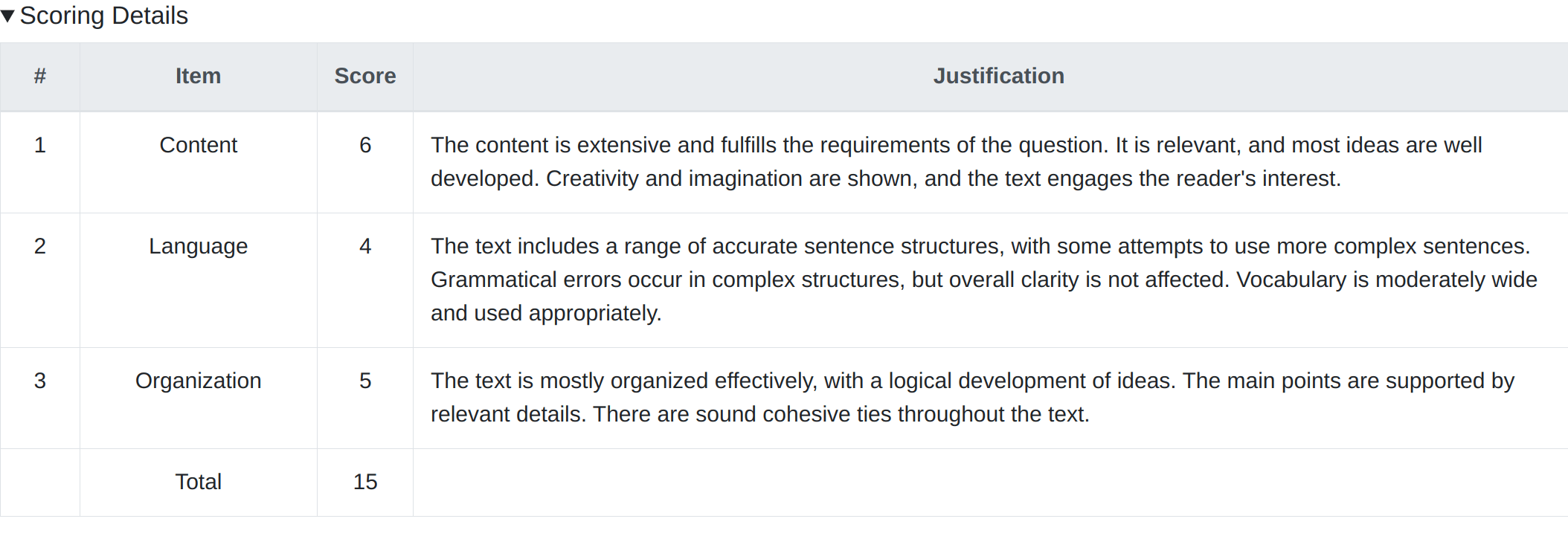
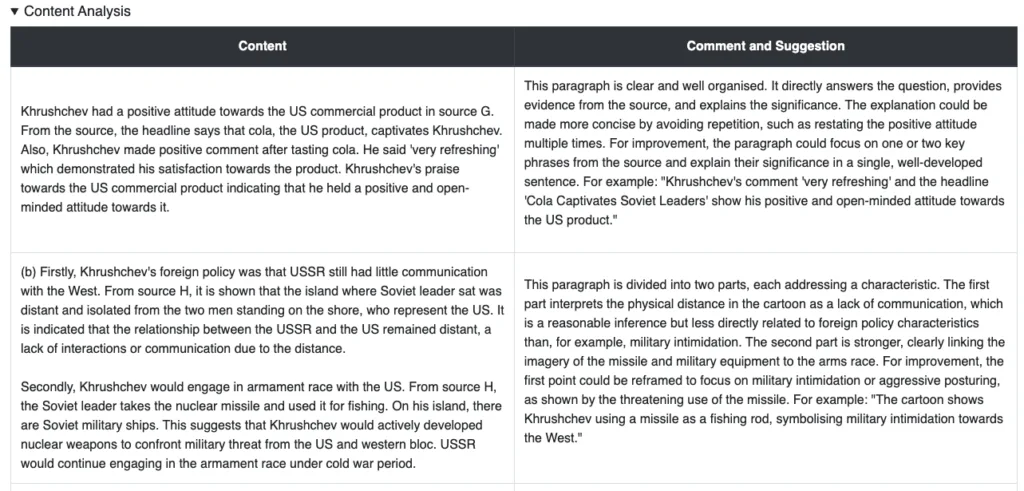
Each AI-marked answer includes: Scoring Details, Detail Content Analysis(Optional) and Suggestions.

Detailed content analysis
In a detailed content analysis, your answer will be analyzed by paragraph.
Linguistic Error Detection (Optional)
This feature can be enabled by the teacher.
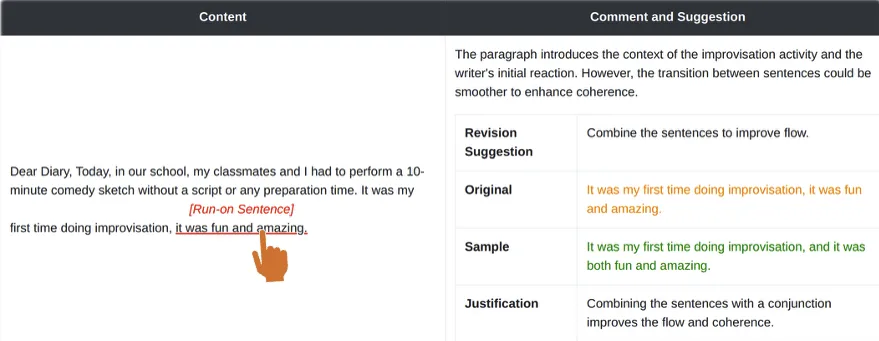
When enabled, additional components will be provided:
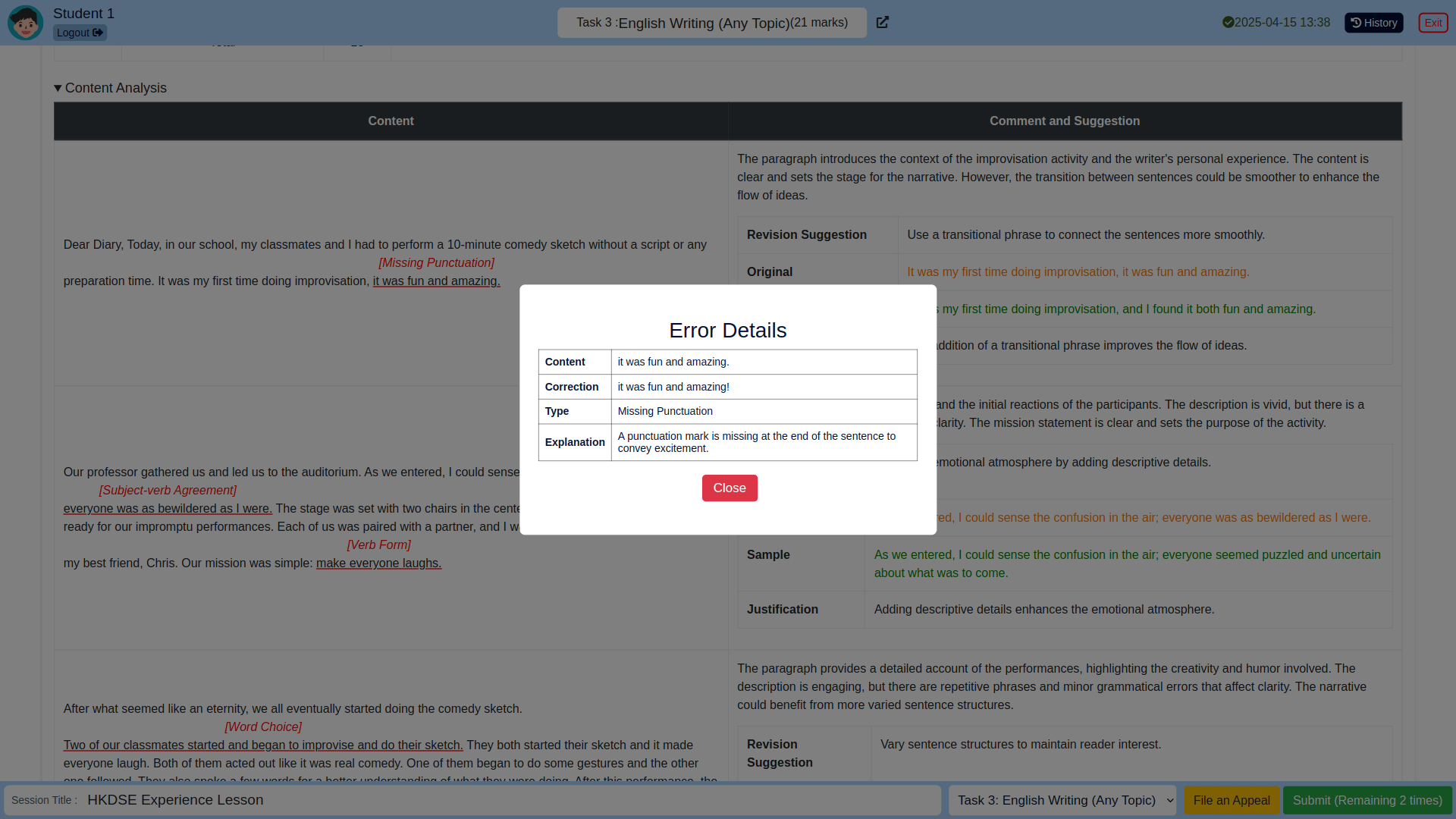
- Summary and suggestions related to linguistic errors.
- Underlined text: Click to view corrections and justifications (if not hidden by the teacher).
Correcting and resubmitting your answer
After checking the AI result, you need to correct and resubmit your answer. For updating different types of answer:
- Normal text answer
You can either edit the text directly in the textfield or delete it and re‑OCR your answer. - Correction Wizard (For question enabled Linguistic Error Detection)
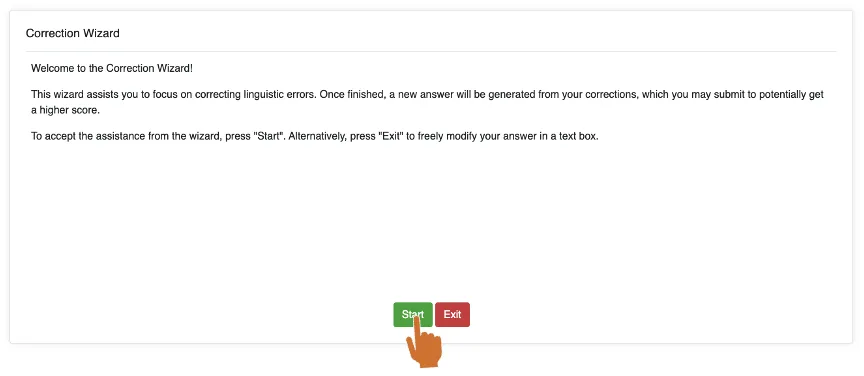
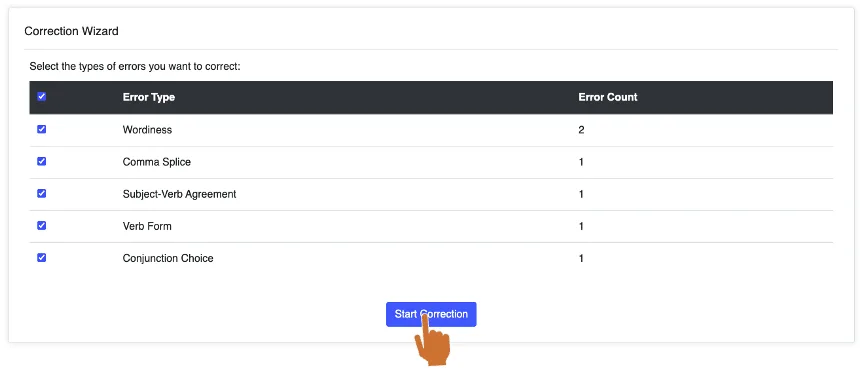
At the bottom of the AI result, there is a correction wizard. This wizard will help you focus on correcting linguistic errors. Click "Start" and choose the error you want to correct, then click "Start Correction".
- Equation answer
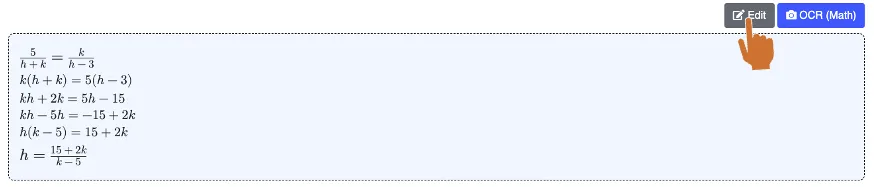
Click "Edit" and delete all of the text in the textfield, then re‑OCR your answer.
Selecting Task
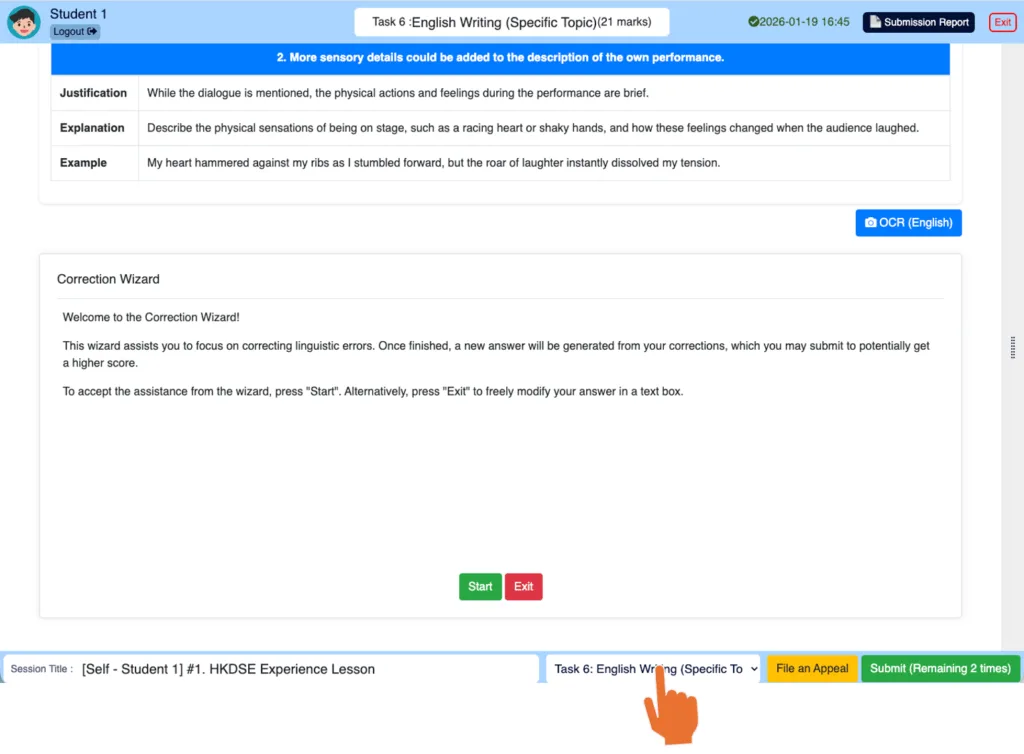
The session may include more tasks; you need to complete all of them.
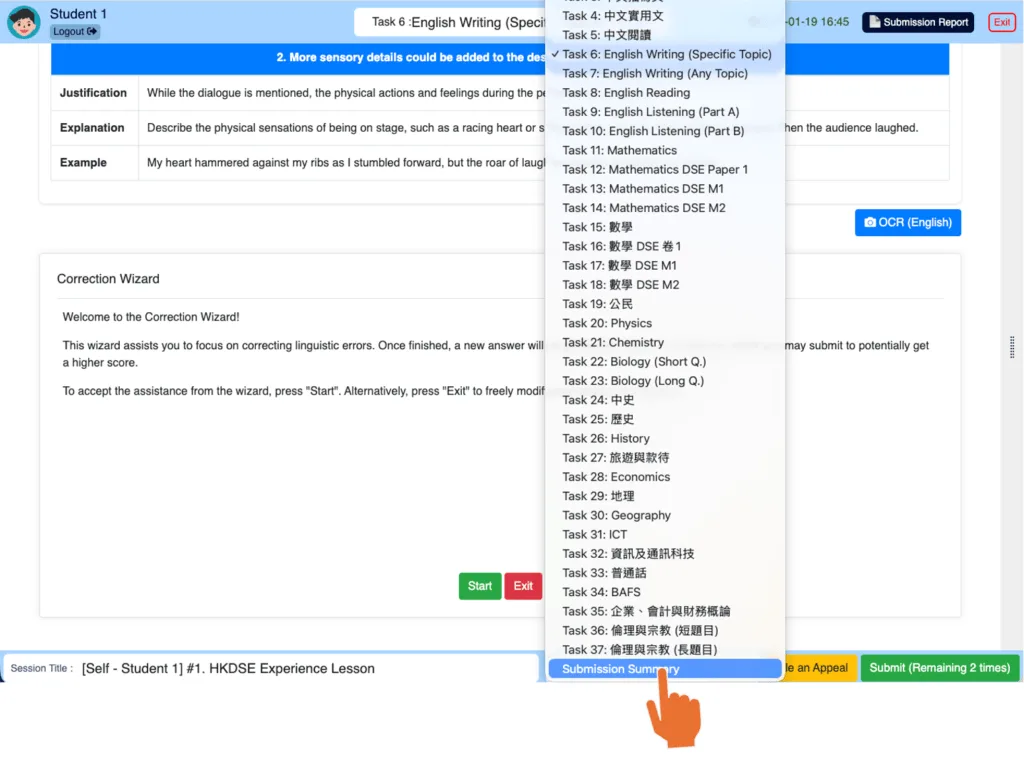
- Click the task selector in the lower right corner and choose the task you want to go to.
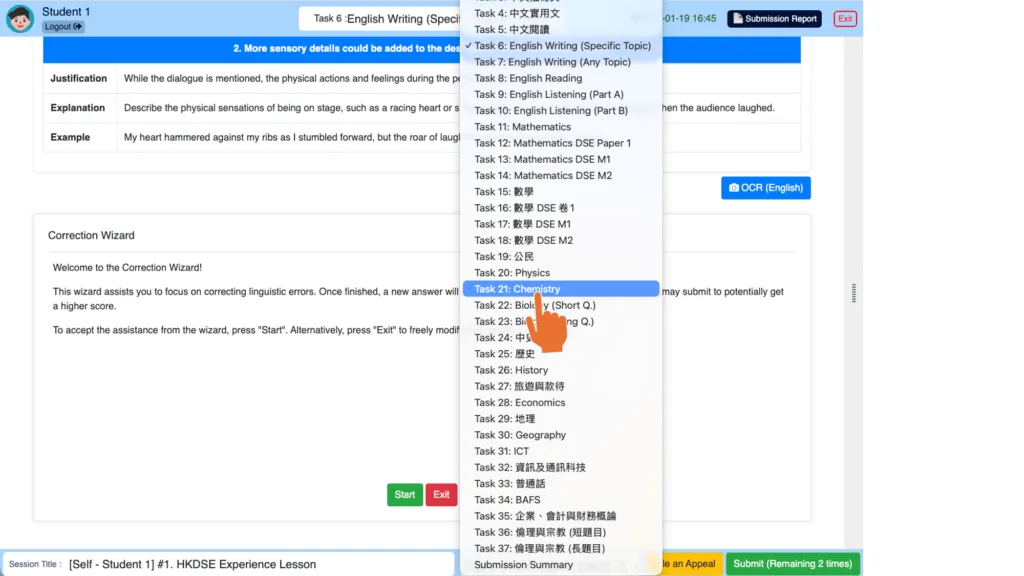
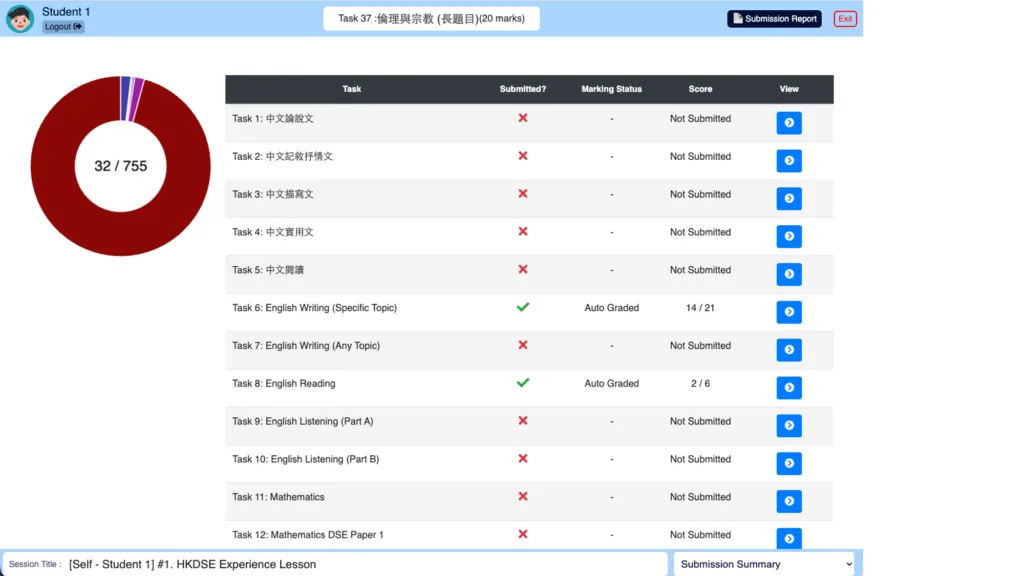
- The last item in the task list is "Submission Summary." It shows the overall score, task scores, and submission status for each task.
Submission report
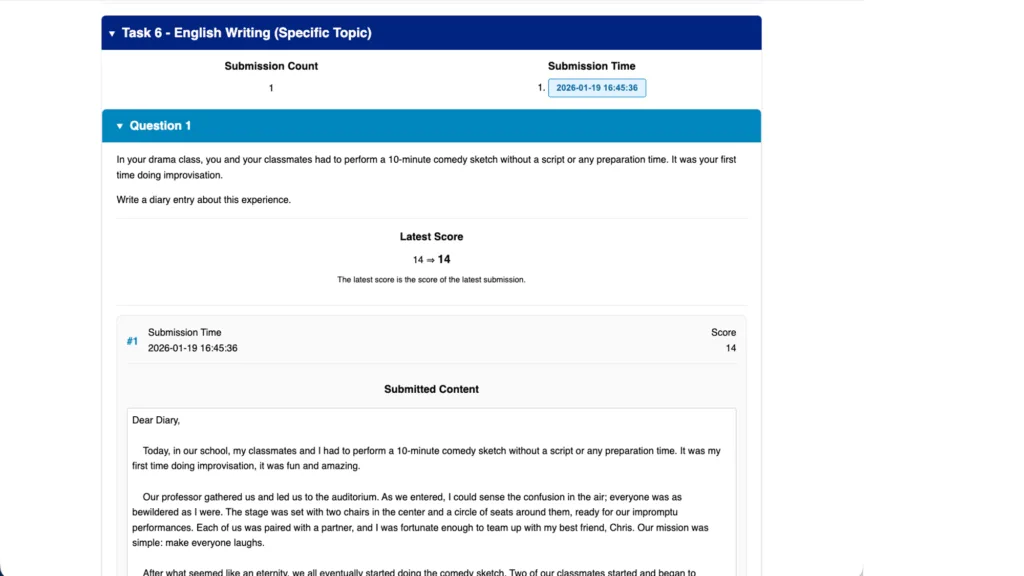
You can check all of your submission records and AI results in the submission report.
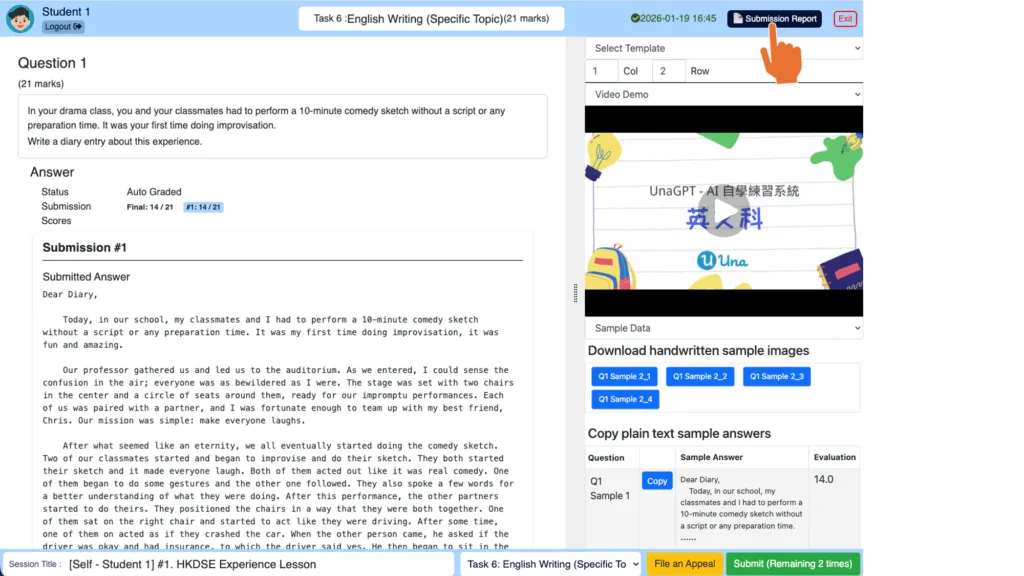
Click the "Submission Report" button in the top-right corner.